
Ameriabank card payments in your WooCommerce store
Card payments, Apple Pay and Google Pay in your WooCommerce store through Ameriabank vPOS.
To accept Ameriabank payments on your website, first apply directly to Ameriabank. Once your application is approved, contact us to set up Ameriabank payments on your site.

How it works
Connects a WooCommerce store to the vPOS payment service of Ameriabank CJSC. Customers pay by card without leaving the checkout flow: the shop sends them to the bank’s secure page, the bank returns them with the result, and the shop confirms the payment directly with the bank before marking the order paid. No card details ever pass through your site. No activation key, no identification step — every setting is available the moment the plugin is activated.
What the customer sees. What you see.
- Shoporder placed
- Bank page3-D Secure
- Returnwith the result
- Verificationshop ↔ bank
- Paidorder updated
What the plugin does
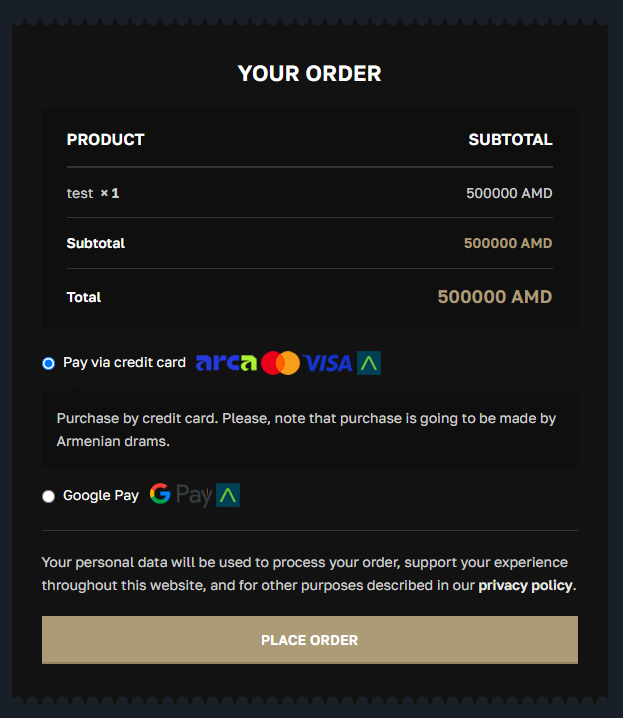
Apple Pay and Google Pay
Separate checkout options, each shown only on devices that can use it. Enabled by the bank for your merchant account at no extra charge.
Saved cards
Returning customers pay without re-entering their details.
Cancel within 72 hours, refund any time
Full cancellation within 72 hours; full or partial refunds from the order screen afterwards.
Four currencies
Drams, dollars, euros and roubles — once the bank enables multi-currency for your account.
Two-stage payments
Hold the amount first, capture it later.
WooCommerce Subscriptions
Recurring payments for subscription products.
WPML and Polylang
The bank’s page opens in the customer’s language; the return page and e-mails follow the language the order was placed in.
HPOS and block checkout
Full support for High-Performance Order Storage, the classic checkout and the block-based checkout.
Verified before marked paid
Payment ID, order reference, amount, currency and state all have to agree with the bank’s answer.
Test mode and technical log
Sandbox before going live; failures are written to the log and to the order notes.
One settings screen. Nothing to code.
Everything lives under WooCommerce → Settings → Payments. Paste what the bank gave you, pick the mode, save.
- 1Enable the method and give it a name customers will recognise
- 2Paste the credentials from Ameriabank
- 3Test mode on → one test payment → test mode off
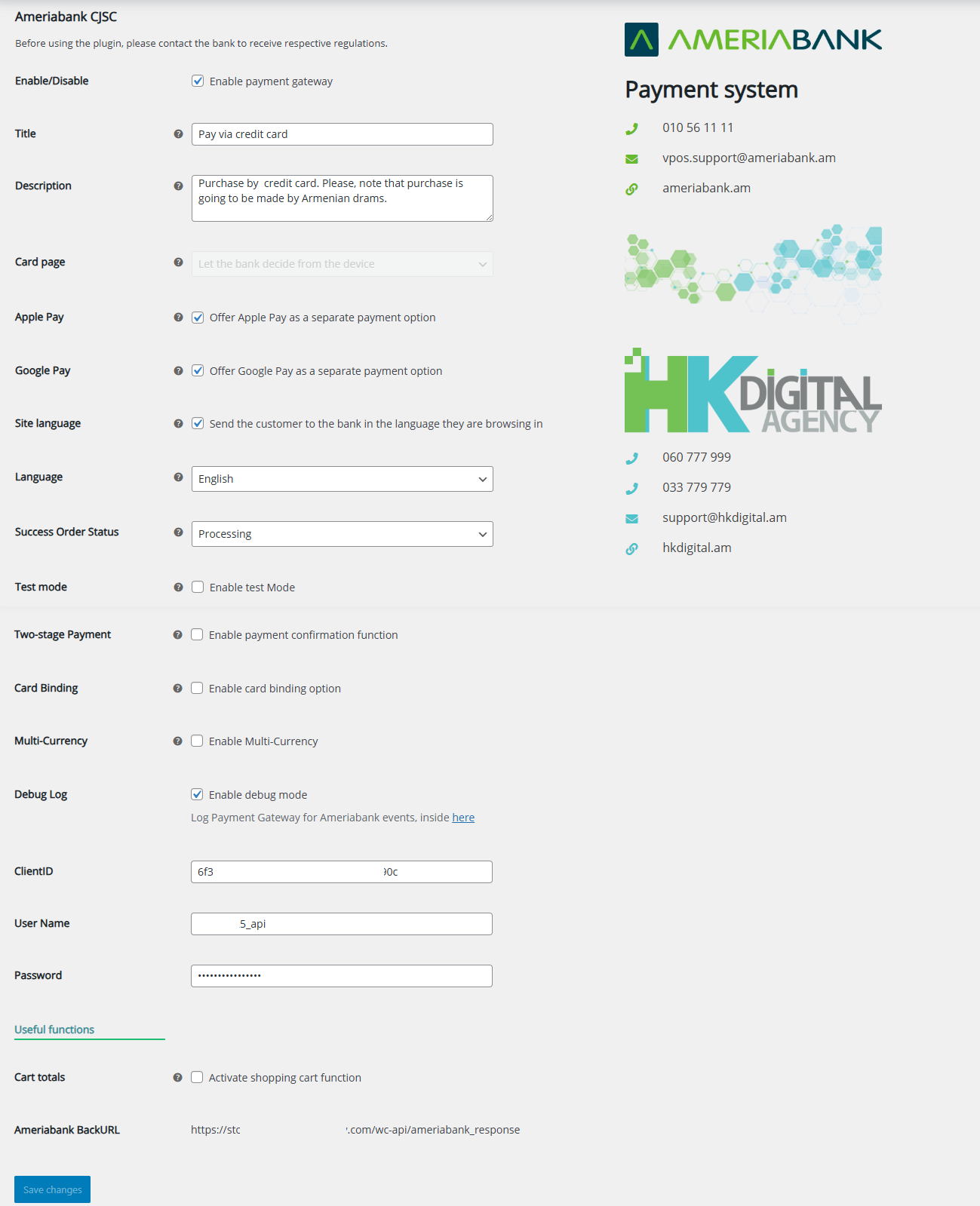
From download to first payment
- 01
Install
One click from the WordPress plugin directory — no ZIP files, no FTP.
- 02
Connect
Paste the merchant credentials Ameriabank gave you. Choose test mode.
- 03
Test
Make a test payment, check the order and the receipt.
- 04
Go live
Flip the switch. Payments land on your account, orders update themselves.
Four things. Tick them and you are ready.
- A merchant agreement with AmeriabankA vPOS agreement with Ameriabank CJSC; the bank issues the credentials. Apply online through Ameria MyBusiness or call 010 56 11 11 · [email protected]
- WordPress with WooCommerceWordPress 6.5 or newer.
- An SSL certificate (https)Banks only talk to secure shops.
- PHP 7.4 or newerAny modern hosting has it; we check in a minute.
Missing one? Tell us — we deal with the bank and the hosting every week.
The plugin is free. The afternoon is ours.
An Ameriabank customer? Enjoy at least 10% off every HK Digital service.
Websites, online stores, automation, design, marketing and support — all at a minimum 10% discount for Ameriabank business customers.
Mention your Ameriabank business account when requesting a quote. Larger projects may qualify for a higher discount.
Before you connect Ameriabank
Where do I get the credentials?
From Ameriabank CJSC — 010 56 11 11 or [email protected]. You can also apply for the vPOS service online through Ameria MyBusiness.
Do I need an activation key?
No. Nothing has to be entered to unlock the plugin and it contacts no licensing service. Install, activate, enter the bank’s credentials — it works.
How do I switch on Apple Pay and Google Pay?
Each has its own checkbox in the settings, both off by default. Ameriabank has to enable the functionality for your merchant account first; with vPOS it is free of charge.
Can I refund or cancel from the orders screen?
Yes. Cancel within 72 hours for a full reversal; after that refund the whole amount or part of it with the Refund button.
Does it work with a multilingual site?
Yes, with WPML and Polylang. The bank page opens in the customer’s language and the order e-mails follow the language the order was placed in.
What changed recently
The plugin is maintained; here are the latest releases in one line each.
- v1.2.5Restores two files missing from the 1.2.4 archive; removes leftover files from older releases.
- v1.2.4Apple Pay and Google Pay; payment verified with the bank before an order is marked paid; WPML/Polylang language handling; full HPOS support; activation token removed; WordPress 7.0 and WooCommerce 11.0.
- v1.2.3Updated and tested against the current WordPress requirements.
Setup guide, licence activation, changelog.
Everything an admin or a developer needs to connect the bank without calling us — and the number to call when they would rather not.


